

Following recent security alerts involving Facebook users’, the popular social-networking site has now introduced new security tools, the most popular being the HTTPS secured connection which is indicated by either a small lock icon or a green address bar on the Web browser when communicating on the Web. Although Facebook previously used the HTTPS whenever a user’s password is sent over the Internet, that service has now been expanded in order to provide more security for users. Thus, the option will now exist as part of Facebook’s advanced security features.
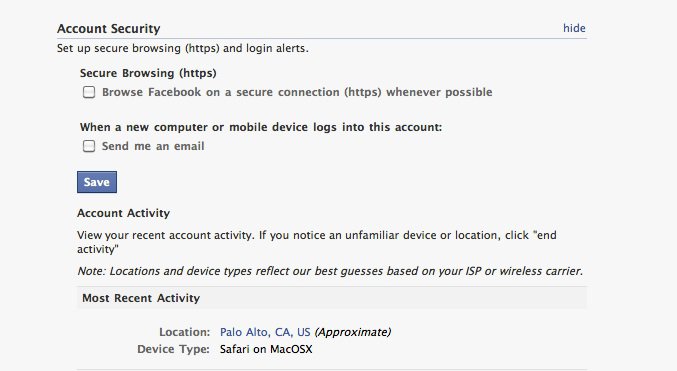
Those who frequently use Facebook from public locations such as coffee shops, airports, libraries and schools, are advised to enable HTTPS on their Facebook account. To enable the HTTPS feature, you will have to go to the Account Security section of the Account Settings page as shown below. Tick, “Browse Facebook on a secure connection (https) whenever possible” and “Send me an email” when a new computer or mobile devices logs into this account (Optional). Then Save.

Should you decide to enable HTTPS, note that encrypted pages take longer to load. Furthermore, some Facebook features, including a lot of third-party applications, are not currently supported in HTTPS although that could change soon. While HTTPS is being rolled out gradually, Facebook hopes to be able to offer it as the default settings in the near future.
Read PART 2: Using Facebook’s Social Authentication